Call Feature
Calling Patients
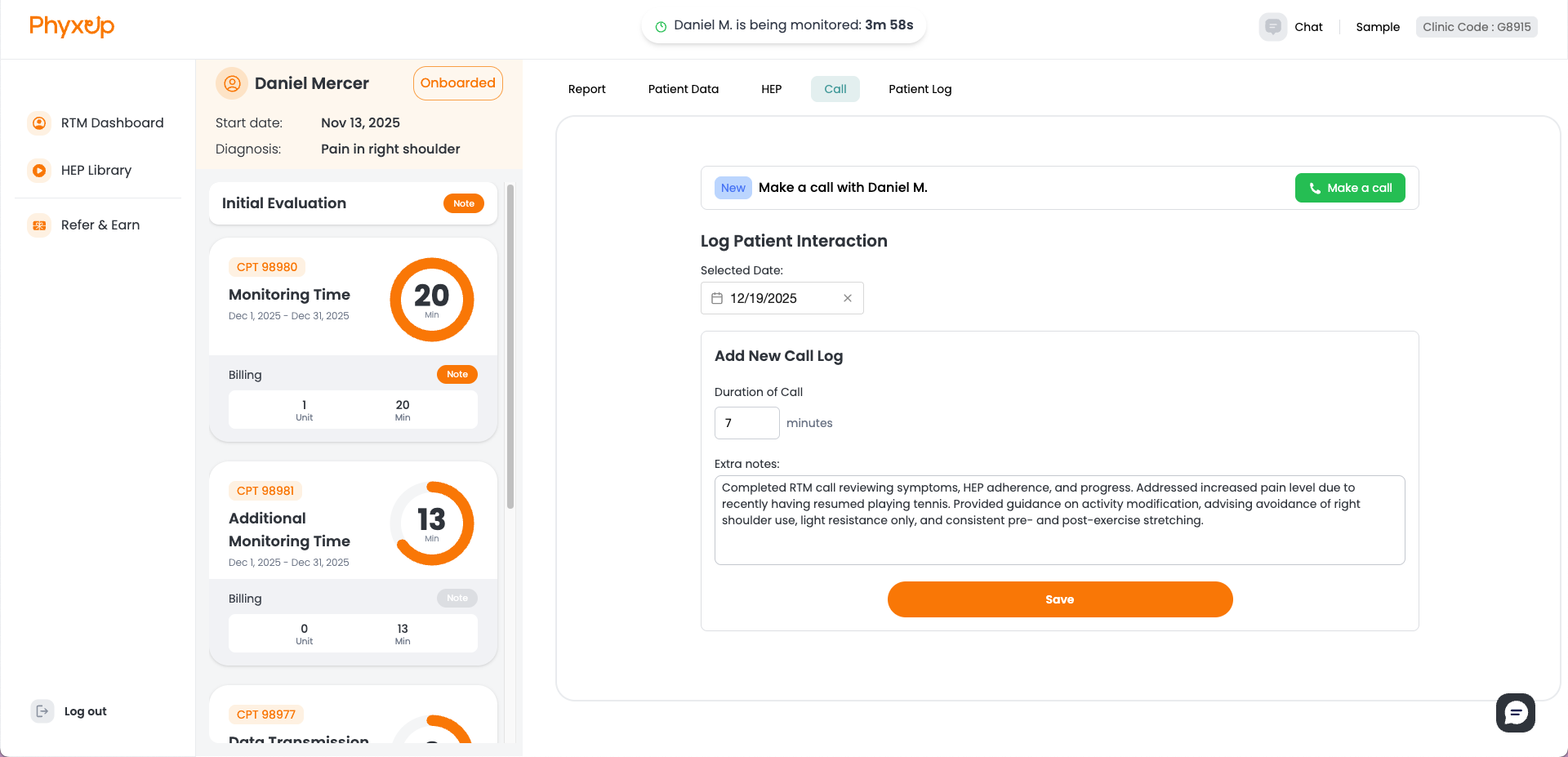
The PhyxUp Health enables remote therapists to directly call patients through the web platform. This can be done by accessing the Call tab in the patient’s dashboard.
To initiate a call to a patient, click on Make a call on the top right corner of the screen. This will allow you to initiate a call directly to the patient’s mobile device.
For how to conduct patient calls and what to prepare for, refer to the Patient Interaction (Call) section.
Initiating Calls
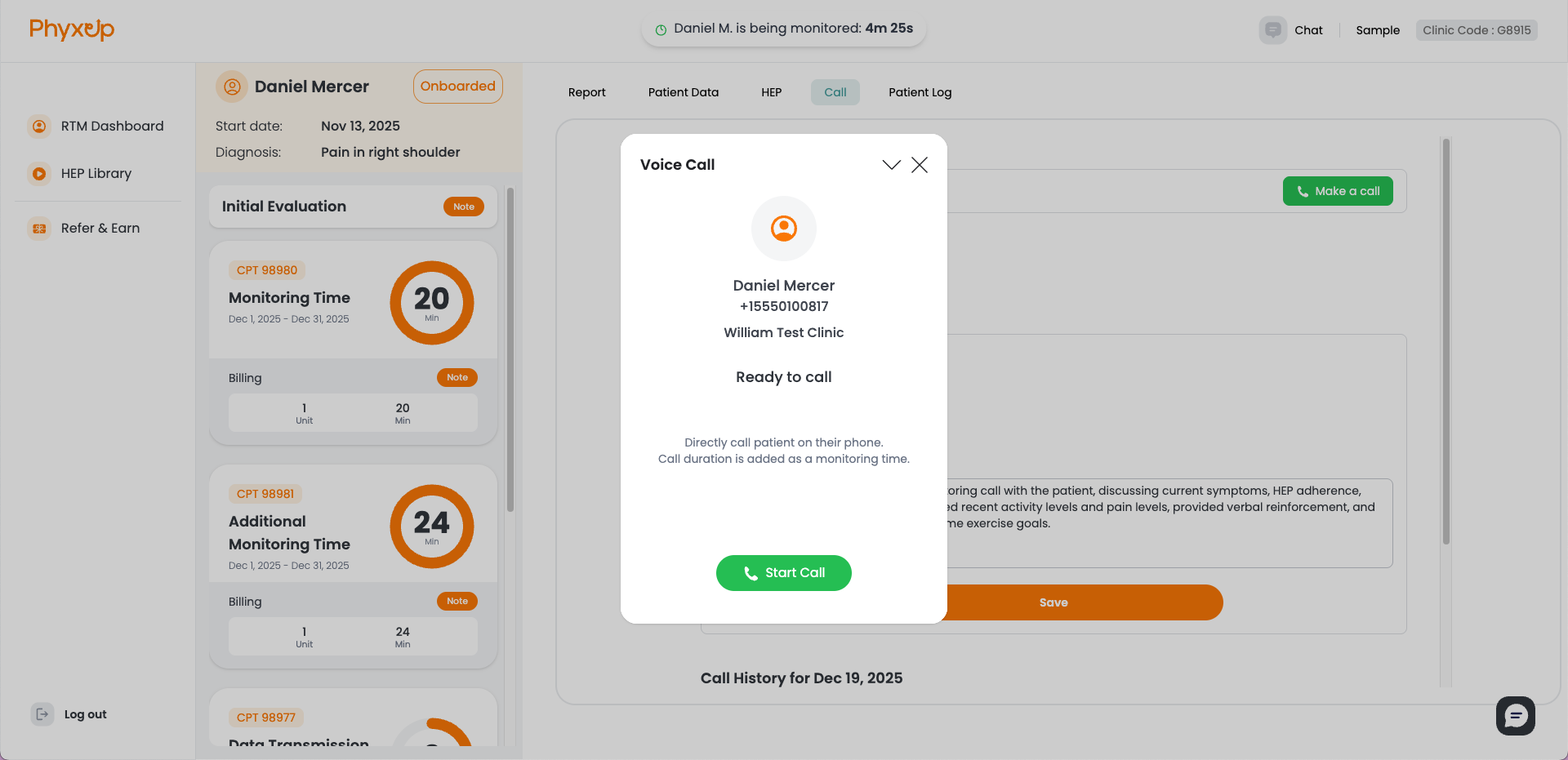
After a call is initiated, the call popup will display one of four statuses:
Connecting
The platform is establishing a connection with the web calling server.
Ringing
The platform has connected to the server and is actively ringing the patient’s mobile device.
Connected
The platform has successfully connected to the patient’s mobile device and the call is in progress.
Busy
The patient ended the call before the connection was established.
Recording Call Log and Error
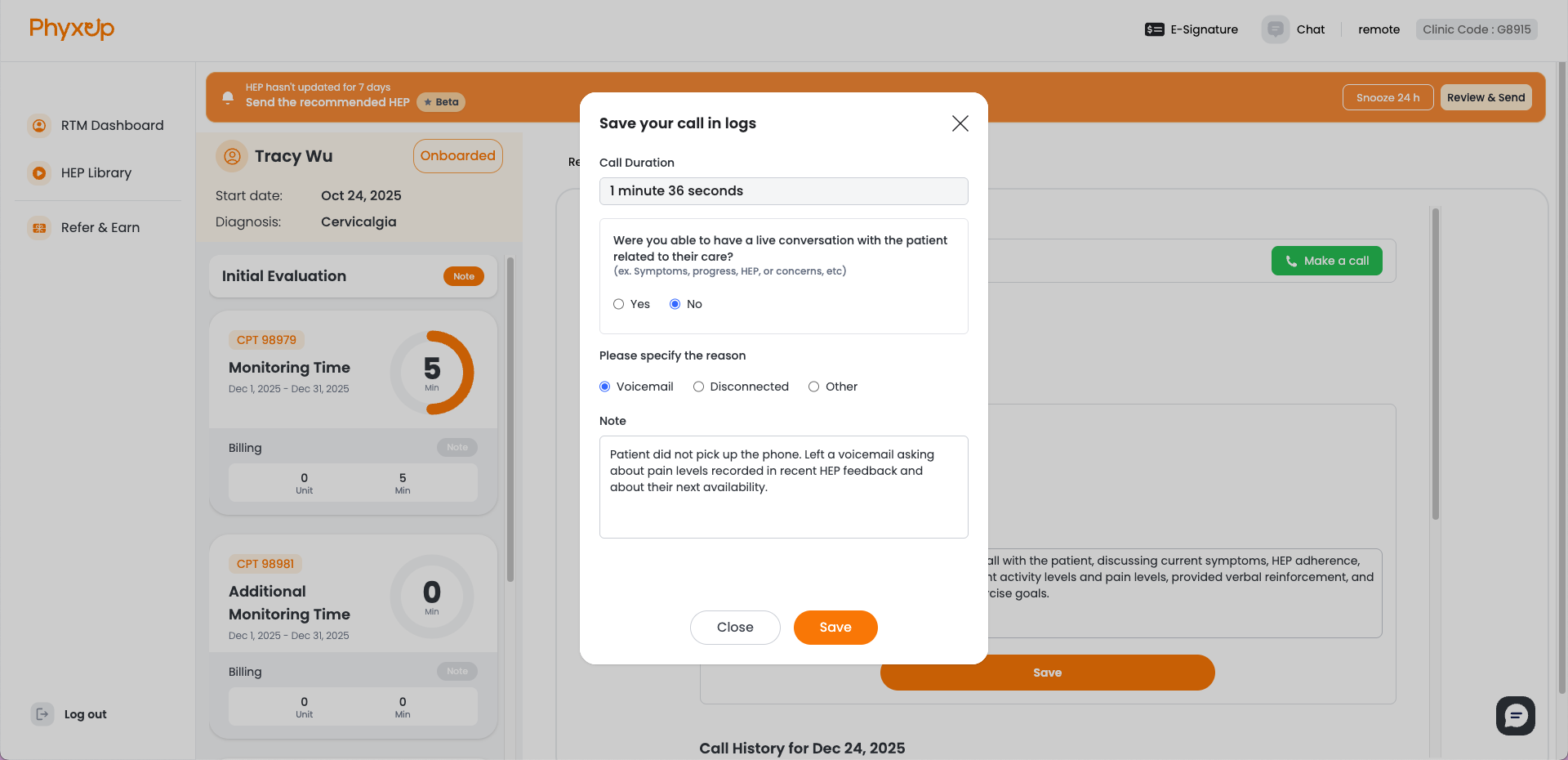
If the platform successfully connects to the patient’s mobile device, a Call Log popup will appear after the call ends (whether the call was completed or not). In the popup, select Yes or No to indicate whether you had a live conversation with the patient.
If you select No, choose or enter the reason the call was not completed (for example: went to voicemail, patient hung up, or another issue).
If the platform is not able to connect to the patient’s mobile device, the Call Log popup will not appear. Instead, the patient log will display: Therapist tried to call patient, but a system error occurred.