Patient Dashboard
Navigating the Patient Dashboard
Individual patient dashboards can be accessed by clicking on the patient’s name on the RTM dashboard.
From the patient dashboard, remote therapists can:
- View progress towards billable units
- Monitor patient data
- Send HEPs
- Make calls
- Record monitoring time.
Monitoring time will start recording the moment you enter the patient dashboard, as displayed on the top of the page.
Please be mindful to not spend too much time on the page record excessive monitoring time. More information on how long to monitor patients, and what to monitor for can be found in the Patient Monitoring section.
Billable Unit Progress
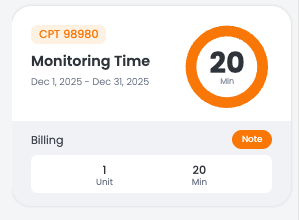
Progress towards billable units (98981, 98980, 98977, 98975) can be viewed on the left side of the patient dashboard. Documentation notes for each unit is automatically generated by the platform, and can be viewed by clicking on the Note button.
Requirements for billable units
CPT 98975: Device Setup & Education
- At least 16 out of 30 days of monitoring/engagement on the platform
- Billed once per episode of care
CPT 98977: Data Transmission
- At least 16 out of 30 days of patient-initiated data transmission on the platform
- Billed every 30 days (rolling period)
CPT 98980: Monitoring Time
- First 20 minutes of recorded monitoring time in a month, along with at least one provider-patient interactive communication (eg. phone call)
- Billed once per month
CPT 98981: Additional Monitoring Time
- Additional 20 minutes of recorded monitoring time in a month, along with at least one provider-patient interactive communication (eg. phone call)
- Billed multiple times per month (only after 98980 is fulfilled)
Patient Report
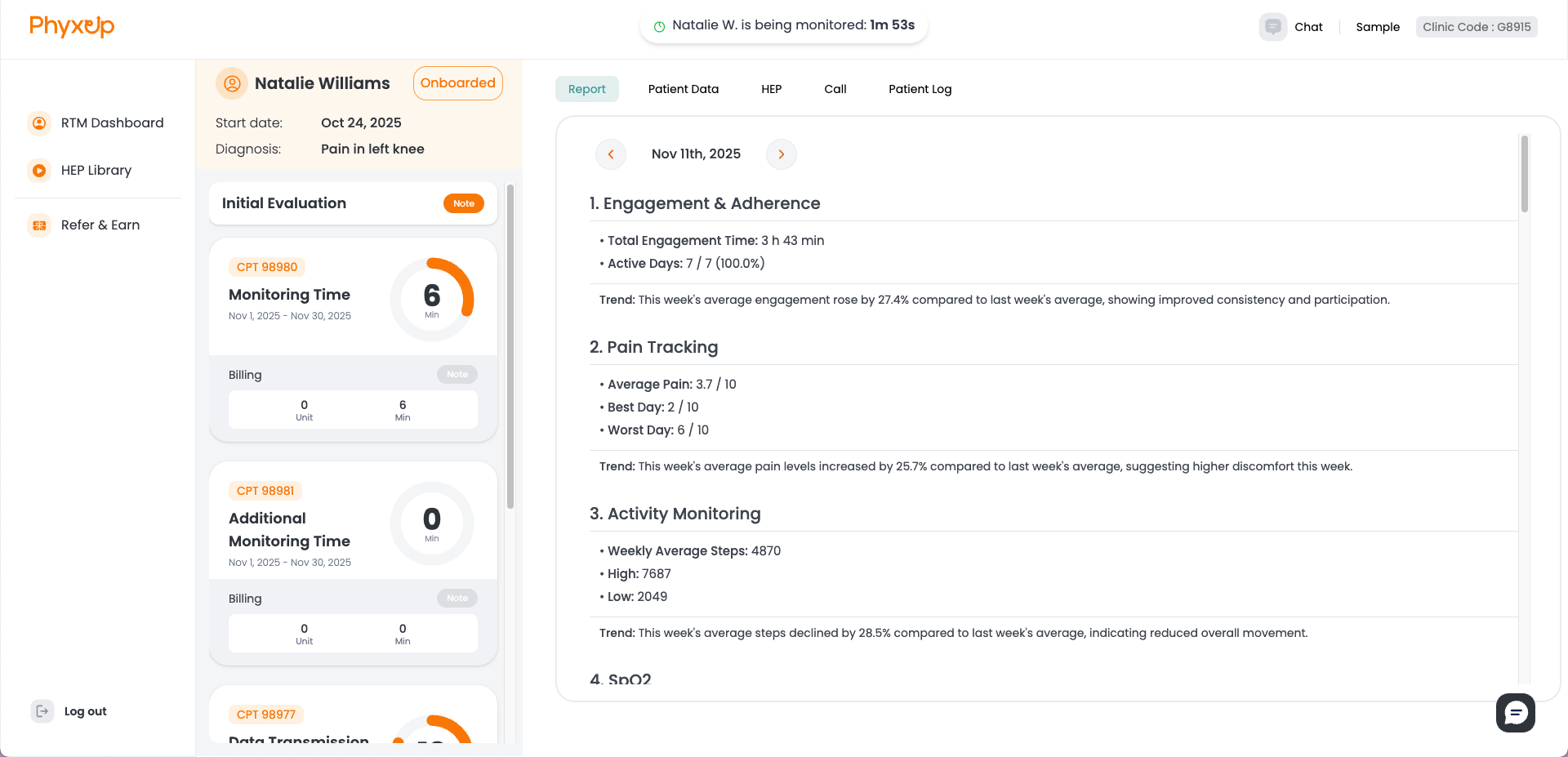
Patient reports are generated weekly and provide an overview of patient data, HEP status, and activity logs. Reports from past weeks can be viewed through the arrow navigation.
Tip: Refer to the patient log page when preparing for patient calls to quickly review the patient’s condition and status, as well as key talking points to discuss.
Patient Data
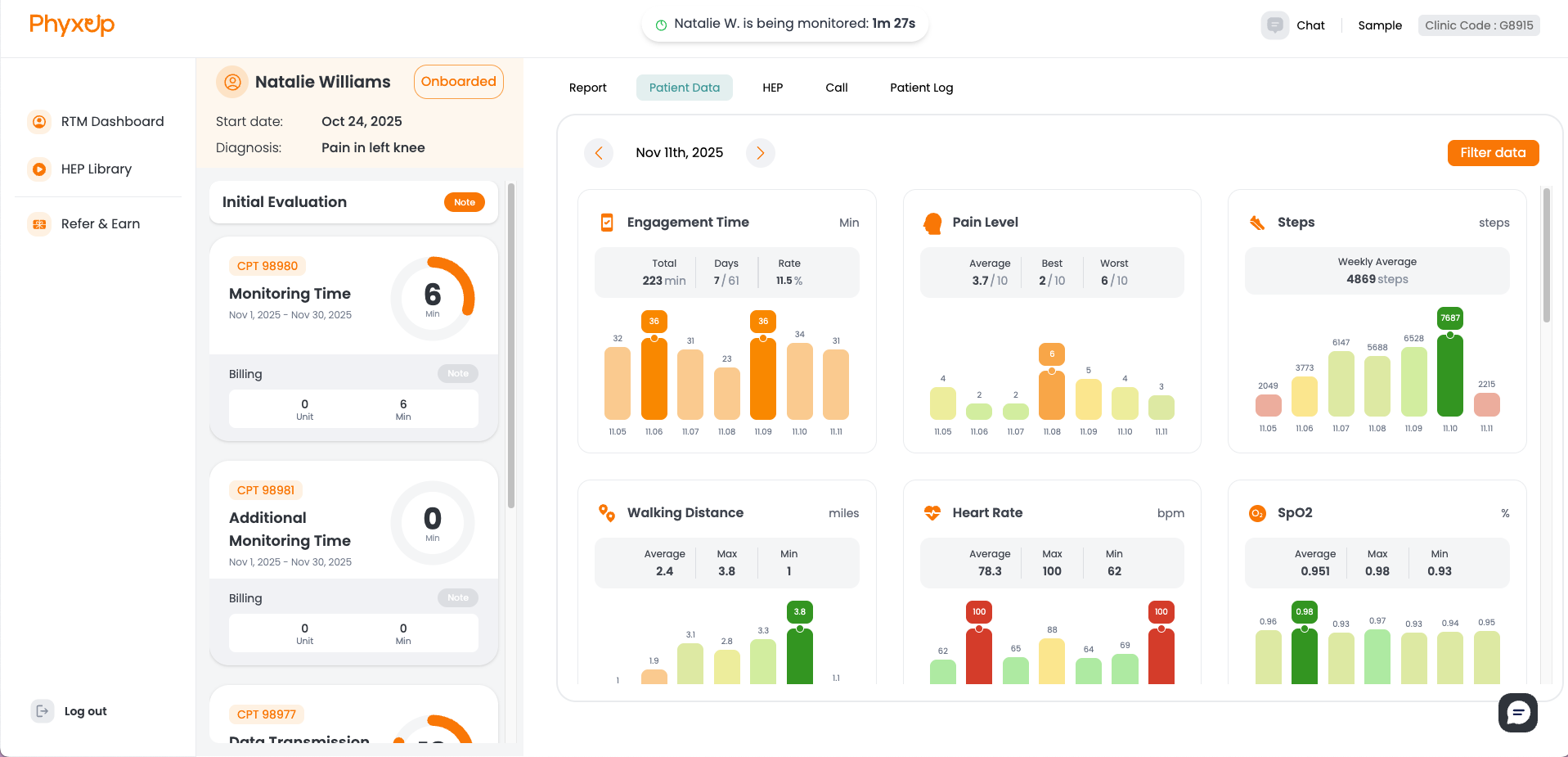
The patient data page provides an overview of patient data that has been uploaded or self-reported through the PhyxUp mobile app. The page displays engagement time, pain level, native health data (eg. Apple Health), as well as custom data that the therapist can create. The data displayed can be adjusted using Filter data on the top right side of the page.
Note: Native health data (steps, walking distance, heart rate, etc.) will only display on the patient data page when the patient has agreed to sharing permissions. If the patient has not shared permissions, please ask the patient the reason why and recommend them to share it for an improved monitoring experience.
Creating Custom Data
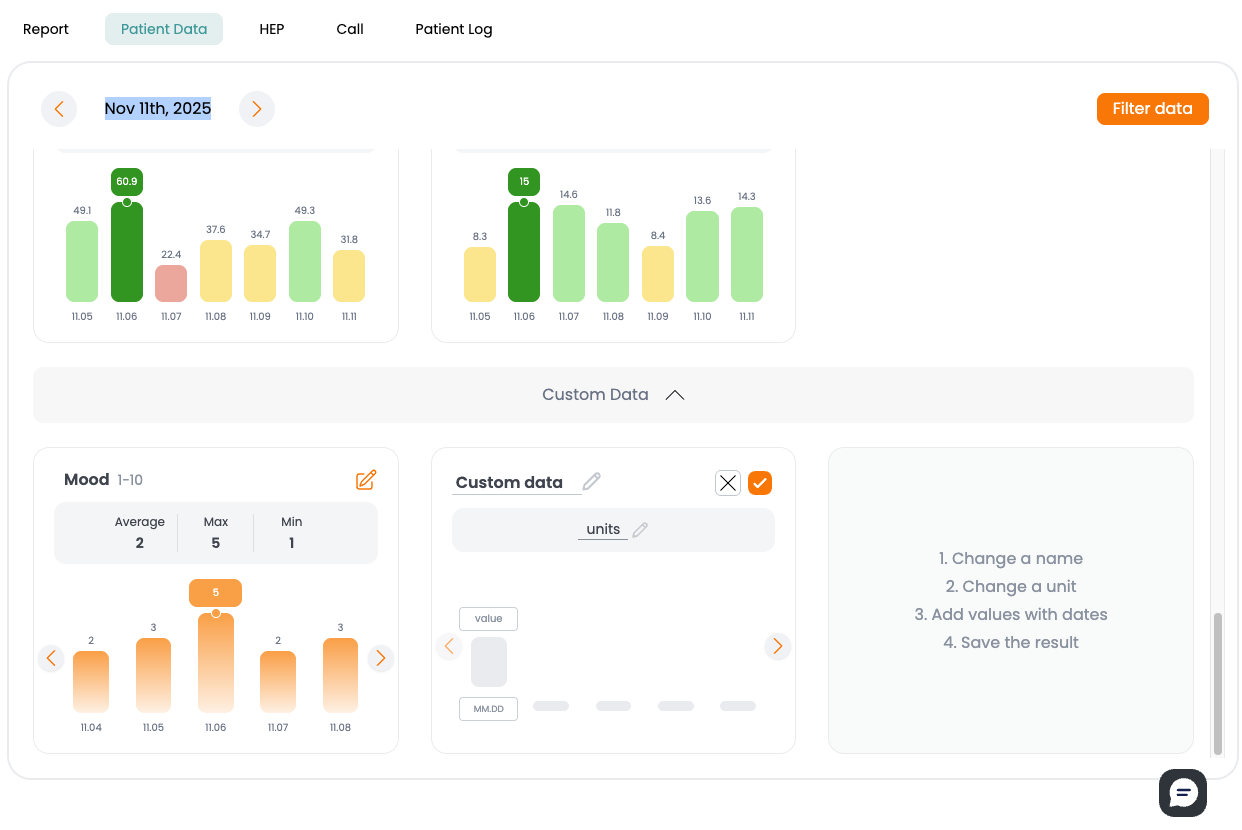
Remote therapists can create and track custom data points based on information gathered during patient communication through the chat or call features on the platform. The custom data builder can be found at the bottom of the Patient Data page.
Examples of custom data creation include
- Patient mood: “How is your mood today?” (1–10)
- Enthusiasm for continuing HEPs: “How enthusiastic are you about continuing your HEPs?” (1–5)
- Concern about recovery progress: “How concerned are you about your symptom progression?” (1–7)
Note: To remain compliant with CMS regulations, all custom data created on the platform must be documented in the patient log through chat or call records. Be sure to record how and when the data was collected, as well as the patient’s response.
HEP Assignment
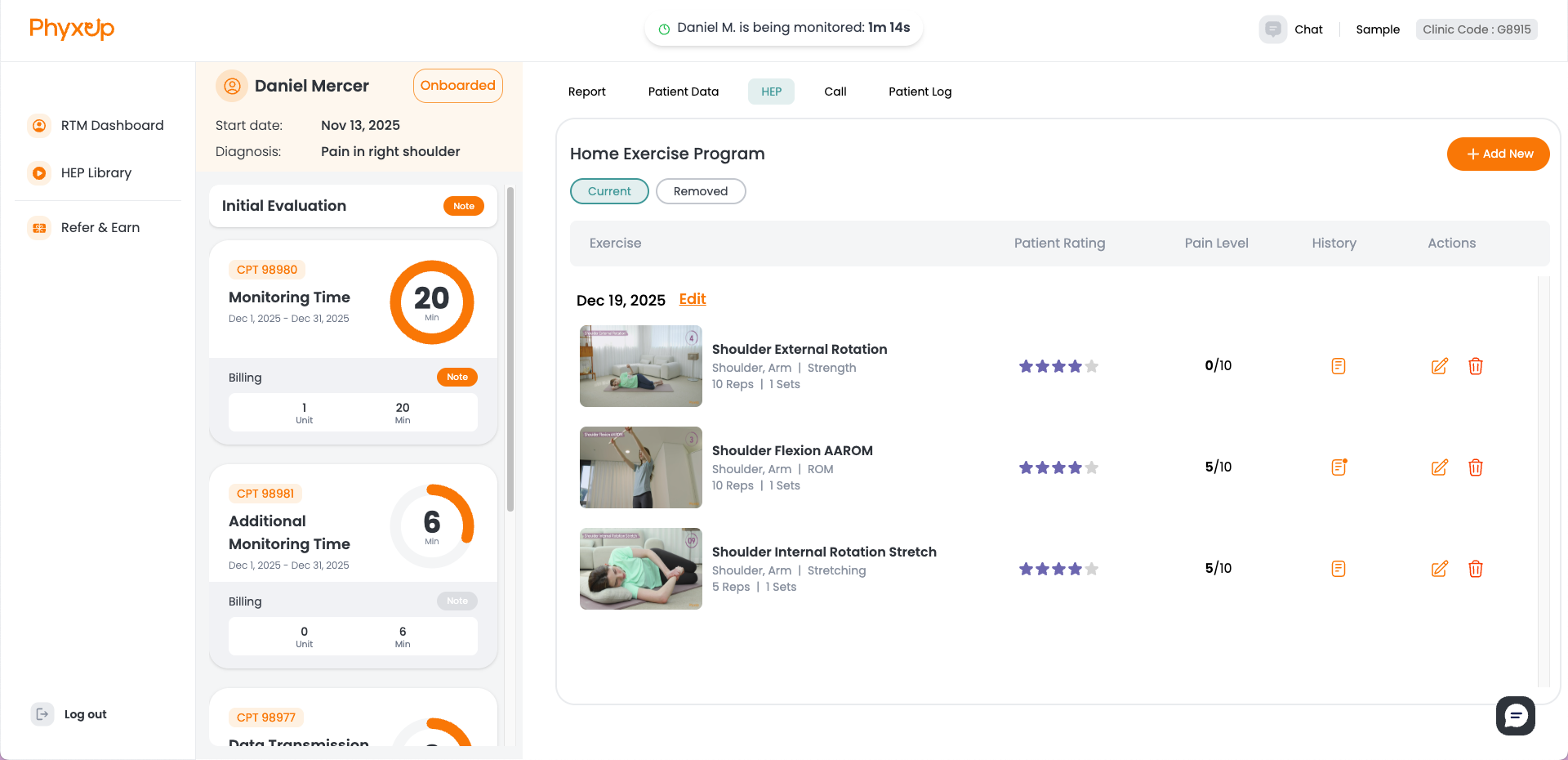
The HEP tab provides an overview of assigned HEPs, as well as their feedback (rating, pain level, note, history). You can edit and delete HEP assignments through this tab.
Note: HEPs can be assigned to individual pages only through the HEP tab.
Assigning HEPs
To create an HEP assignment, click Add New on the upper right corner of page.
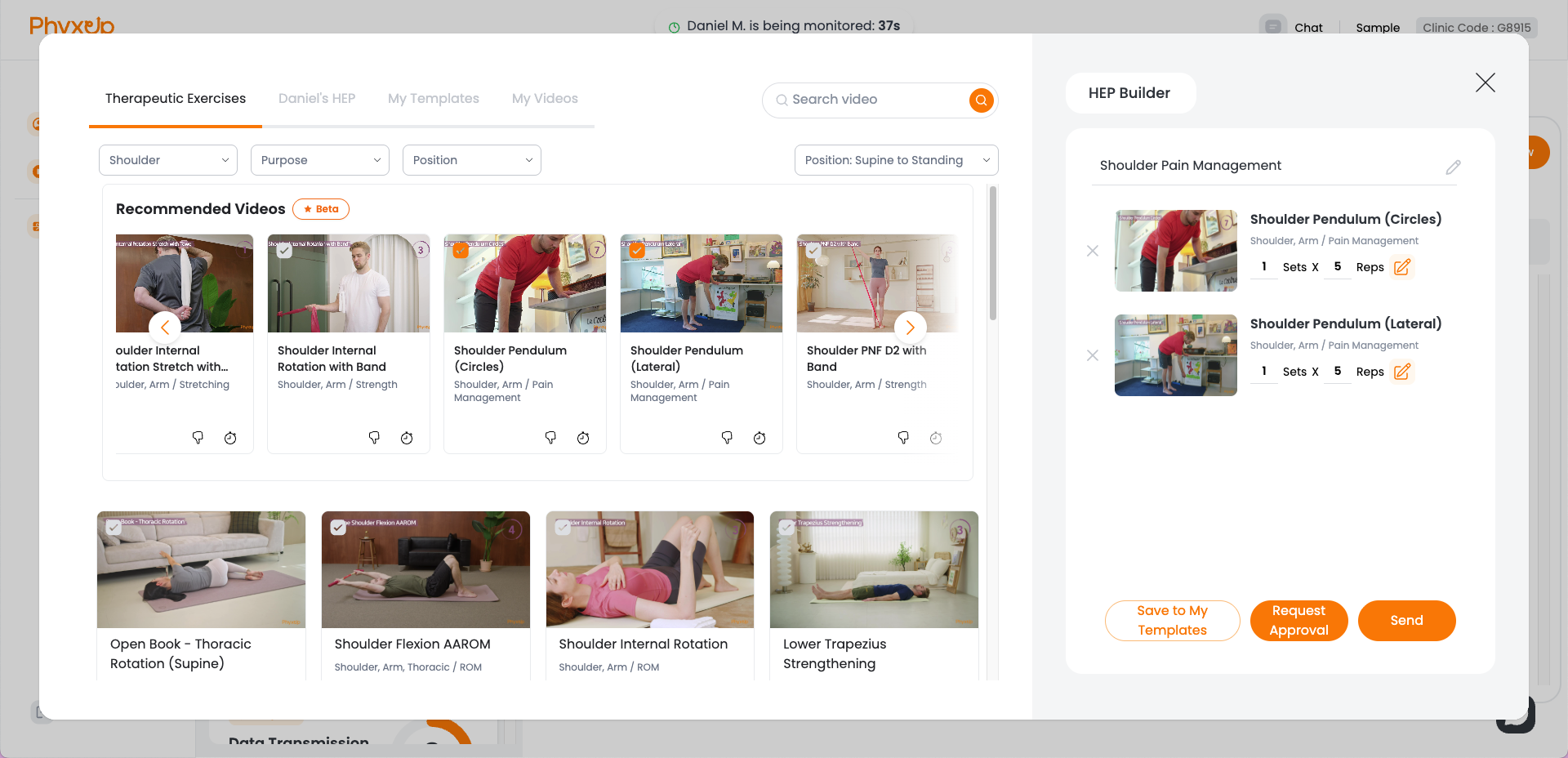
From the HEP Builder, you can drag and drop exercise videos or select templates to assign to a patient. Be sure to adjust the sets and repetitions appropriately before sending to tailor the workload to the patient’s diagnosis and current condition.
Depending on the clinic you are working with, you may need to request approval before sending HEPs rather than sending them directly. Refer to the onboarding instructions and introductory email you received during training to confirm whether the clinic prefers approval requests or allows remote therapists to send HEPs immediately.
HEP History
To view a patient’s HEP history, click on the note icon next to the patient’s pain level. If the patient has done the assigned exercise yet, the icon will be orange, if not it will be grey.
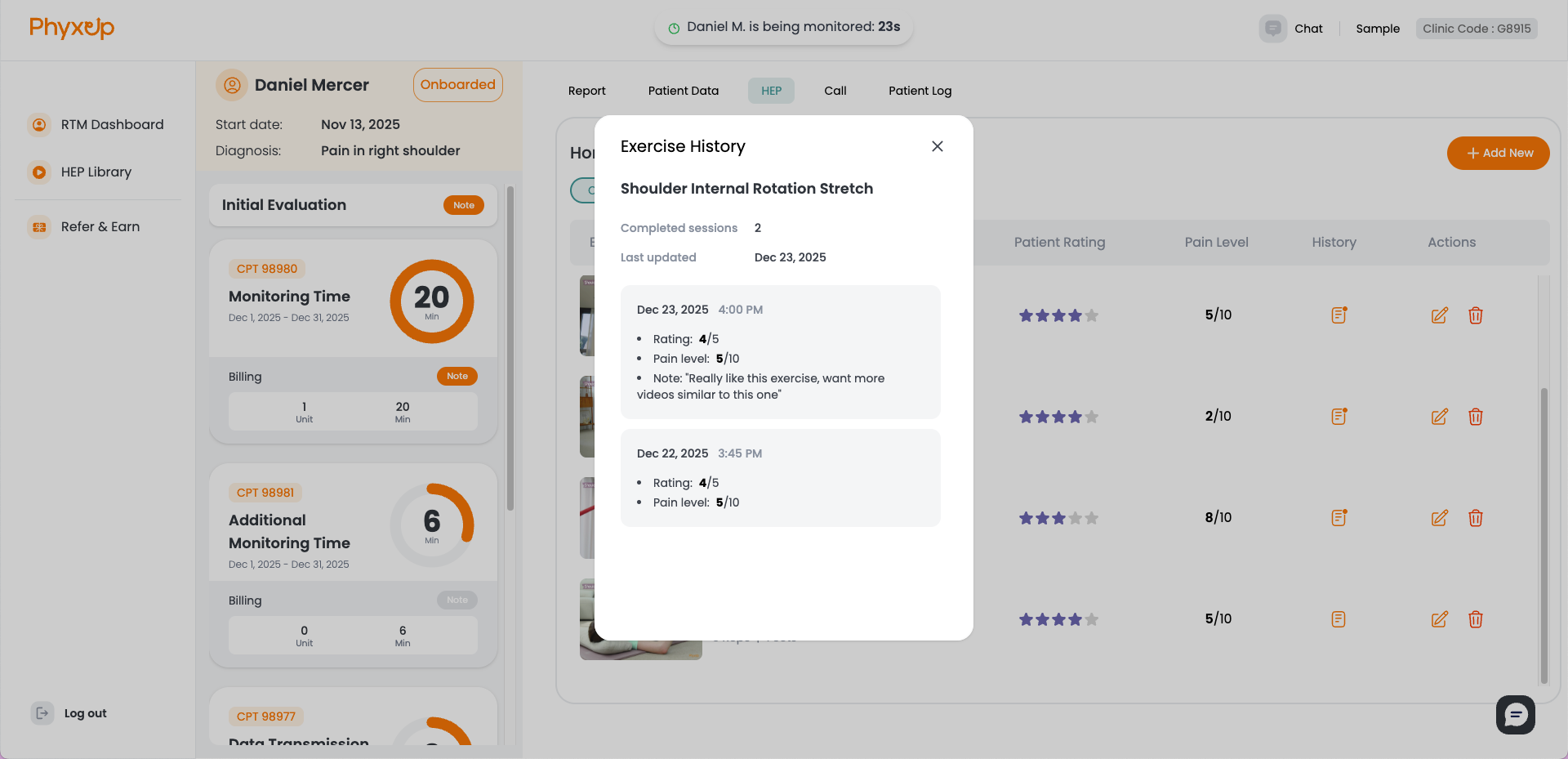
From here, you can view the number of complete sessions, pain level, rating, and any note the patient has left after the exercise.
Call
Information about the Call tab can be found here.
Additional information about how to conduct calls with patients can be found here.
Patient Log
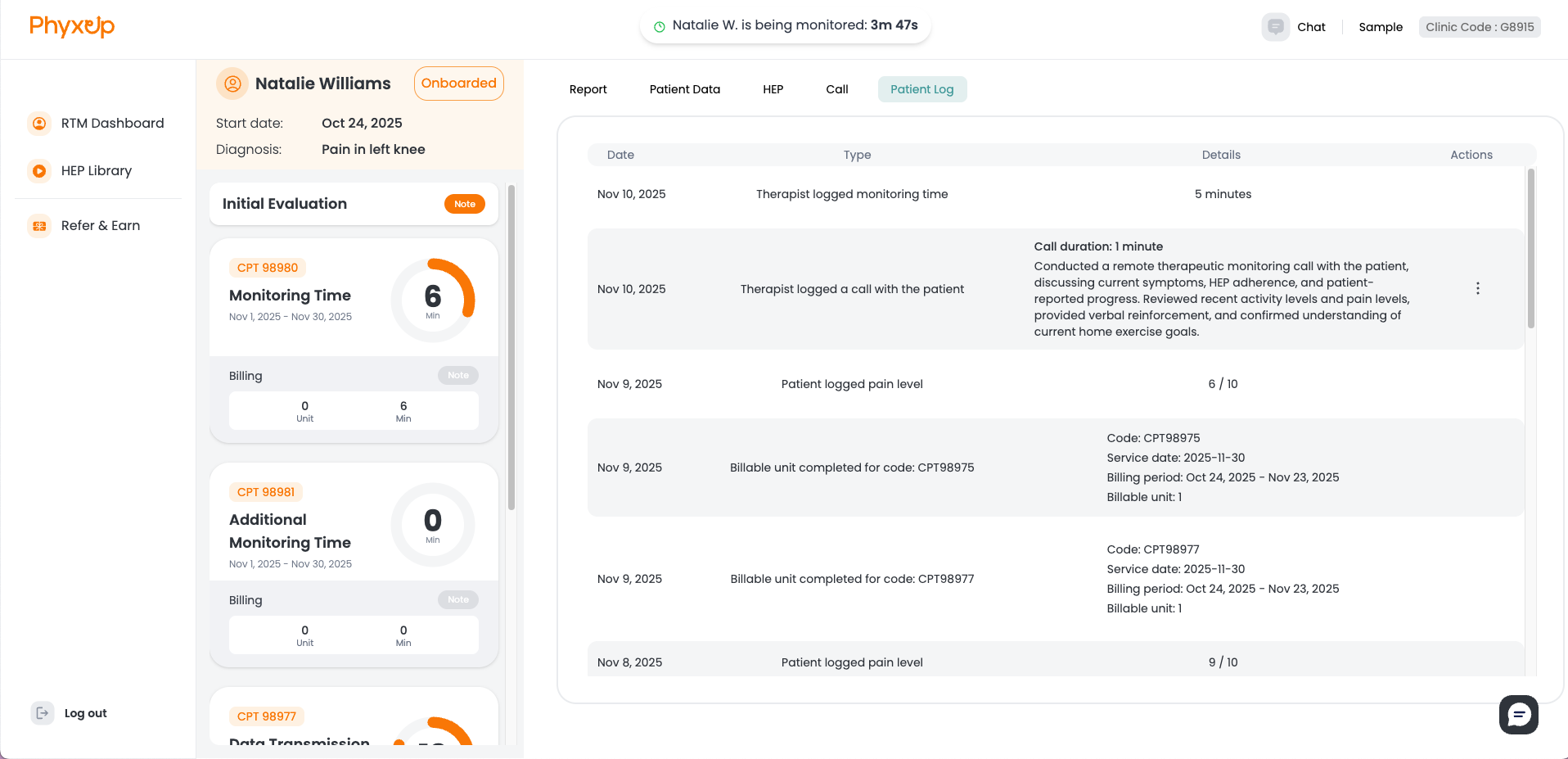
The patient log provides an automatically generated overview of recorded patient pain levels, remote therapist activity, including monitoring time and call logs, and progress toward billable units.
Tip: Remote therapists should regularly review the patient log to track their monitoring activity, data transmissions, and completion of billable requirements.