RTM Dashboard
RTM Dashboard
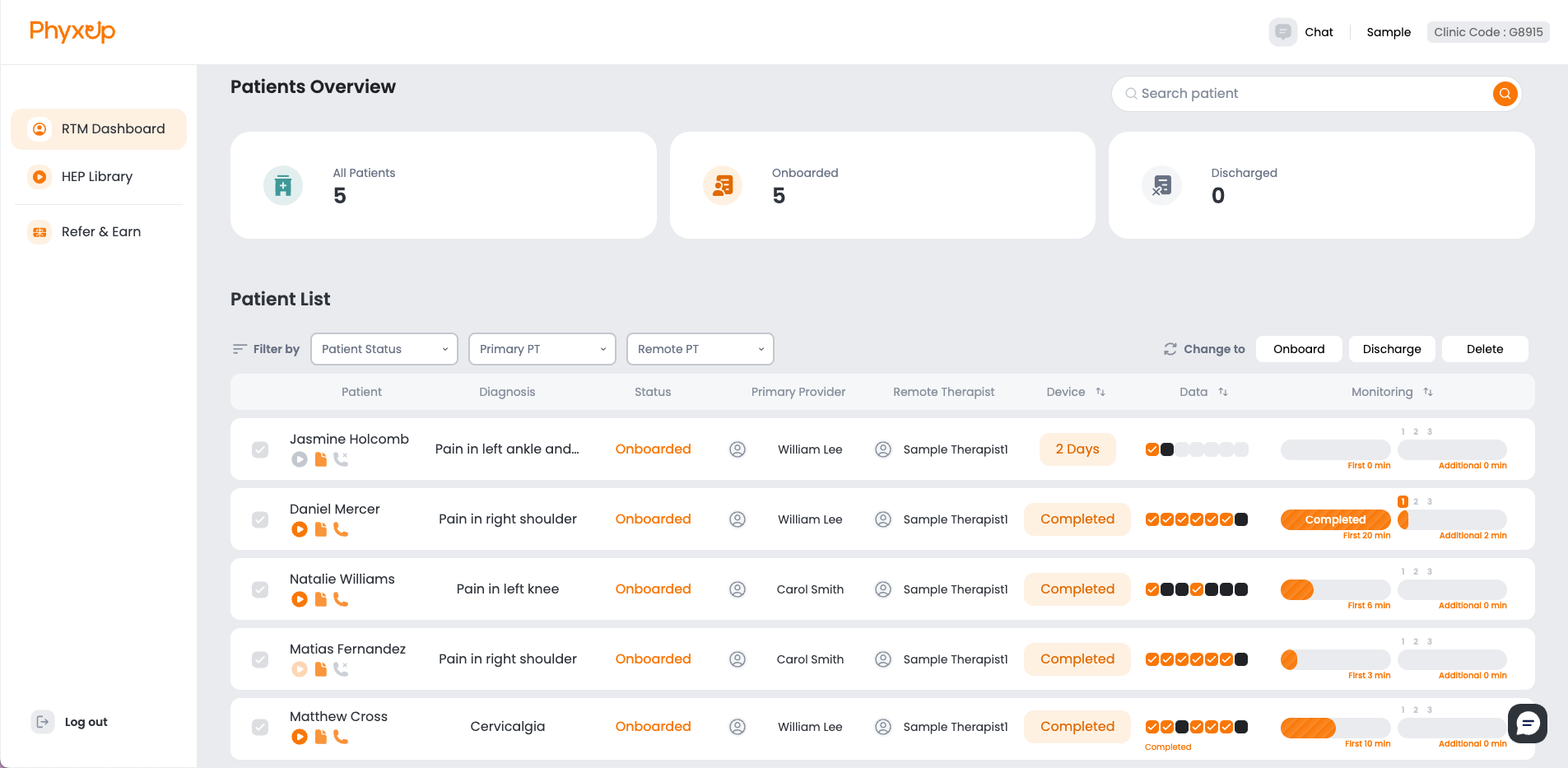
Upon logging in, you will be directed to the RTM dashboard. This page provides an overview of your assigned patients and their current statuses, along with access to individual patient pages and the HEP library.
If you are managing patients across different clinics, click on Clinic Code on the top right corner of the page to switch between clinic dashboards.
Tip: Utilize filtering and sorting functions to organize patients into your preferred view.
Note: Onboard/Discharge/Delete feature on the right side of the screen is unavailable to use for remote therapists
Patient Status

Under each patient’s name, three icons are displayed to indicate key engagement and documentation statuses.
Video play icon (HEP Status)
The video play icon reflects the patient’s Home Exercise Program (HEP) assignment status. Grey indicates that no HEP has been assigned. Dark orange indicates that an HEP was assigned within the past week. Light orange indicates that no new HEP has been assigned in over one week.
Document icon (Initial evaluation note)
The orange document icon provides access to the patient’s initial evaluation note, which can be used for documentation purposes.
Phone icon (Call status)
The phone icon indicates the patient’s call activity status. Grey means no calls have been made. Dark orange indicates that a call was attempted within the past month. Light orange indicates that no call has been attempted in over one month.
Note: Due to CMS regulations, a phone call must be made to a patient once per month by a provider during RTM service.
RTM Status
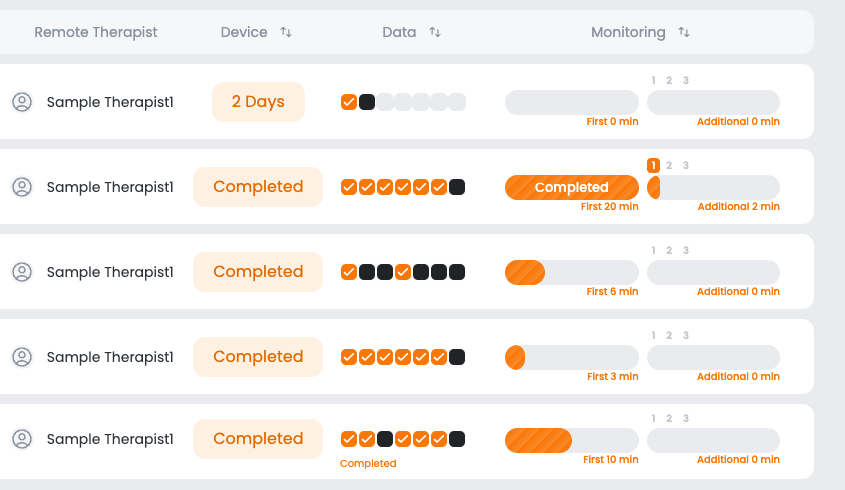
The right side of the RTM dashboard displays each patient’s RTM compliance status. It is important to review these columns regularly, as maintaining progress in each category is essential for staying compliant with CMS regulations.
Device column
The Device column shows progress toward meeting app-set up requirements. Patients must engage with the platform for at least 16 days within a 30-day period. This column displays the number of days the patient has engaged with the platform during the current period. Once the 16-day requirement is met, the status will update to Completed.
Data column
The Data column tracks progress toward data transmission requirements. Patients must self-report or upload data on at least 16 days within a 30-day period. Each box represents one day. Orange boxes indicate days when data was uploaded, while black boxes indicate days with no data transmission. Therapists can hover over the boxes to view a detailed overview of the 30-day period. When the 16-day requirement is met, the column will display Completed beneath the boxes.
Monitoring column
The Monitoring column displays the total monitoring time accumulated for the current month. Under CMS regulations, providers must record at least 20 minutes of monitoring time to bill for RTM services. The left bar represents the first 20 minutes of monitoring time. The right bar reflects additional monitoring time accumulated beyond the initial 20 minutes, including the number of additional 20-minute increments completed.
Video Walkthrough
Watch this video tutorial on how to navigate the RTM Dashboard page!